
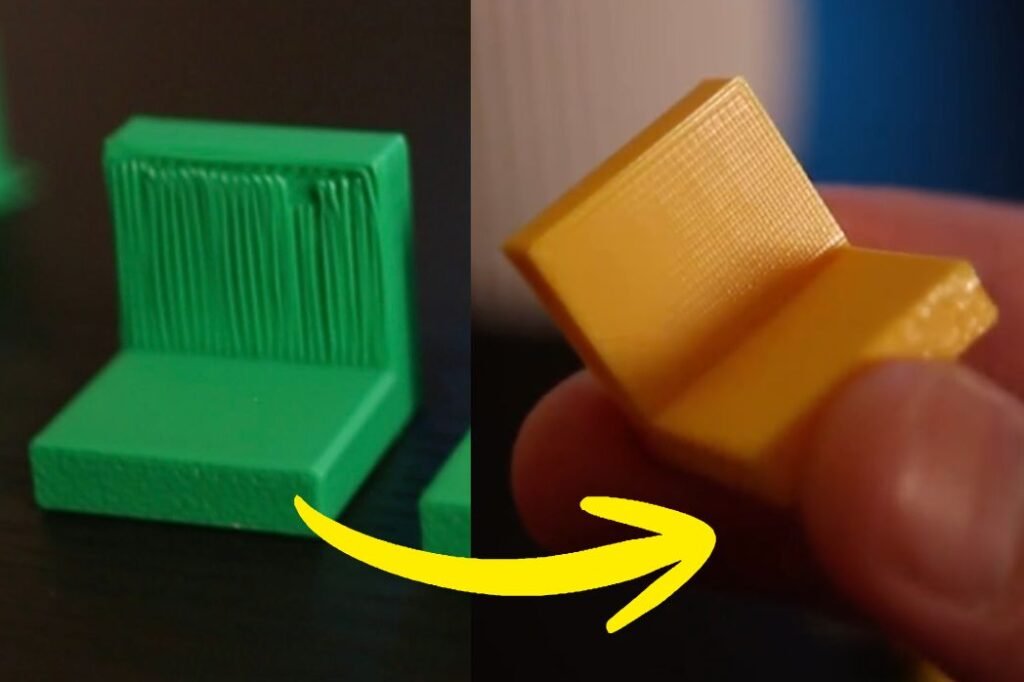

3D printers build layer by layer. When part of your model floats in the air, the melted filament has nothing to land on and will droop or fail entirely.
Supports solve this by providing a structure underneath the overhanging section. The filament lands on the support instead of falling, and the part prints correctly.
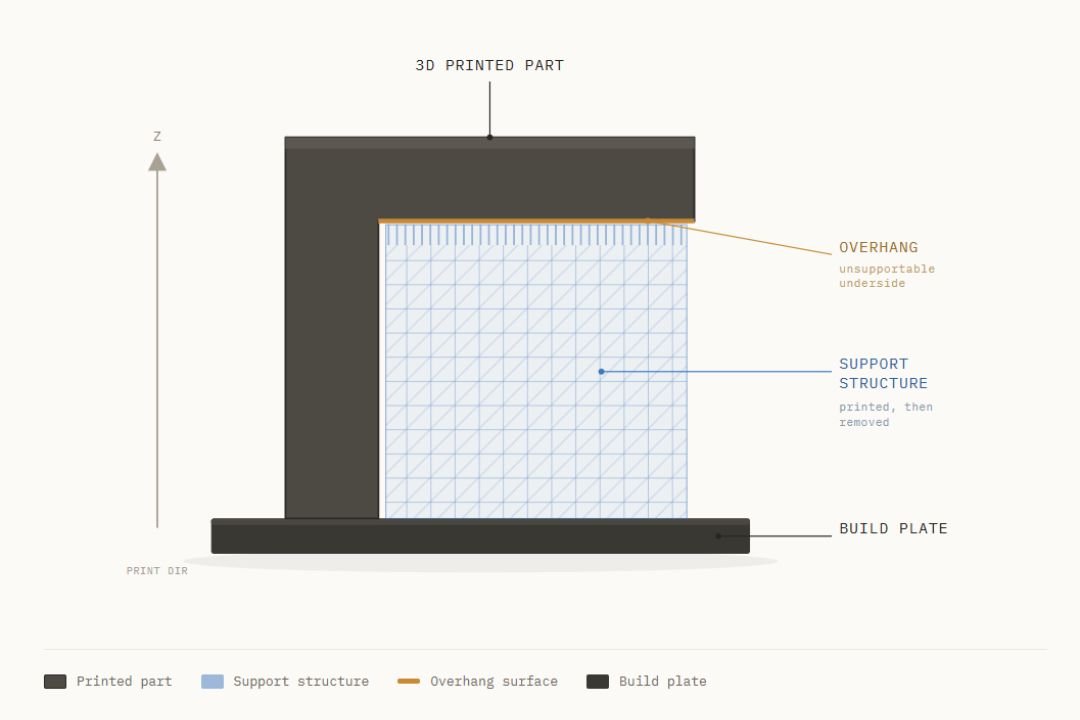
But supports create a secondary problem. The surface sitting on top of the support, which we call the support interface, is almost never perfectly smooth. How clean it looks depends on a single slicer setting called top Z distance.
What Is Top Z Distance?
Top Z distance is the gap between the top of your support structure and the bottom surface of your model.
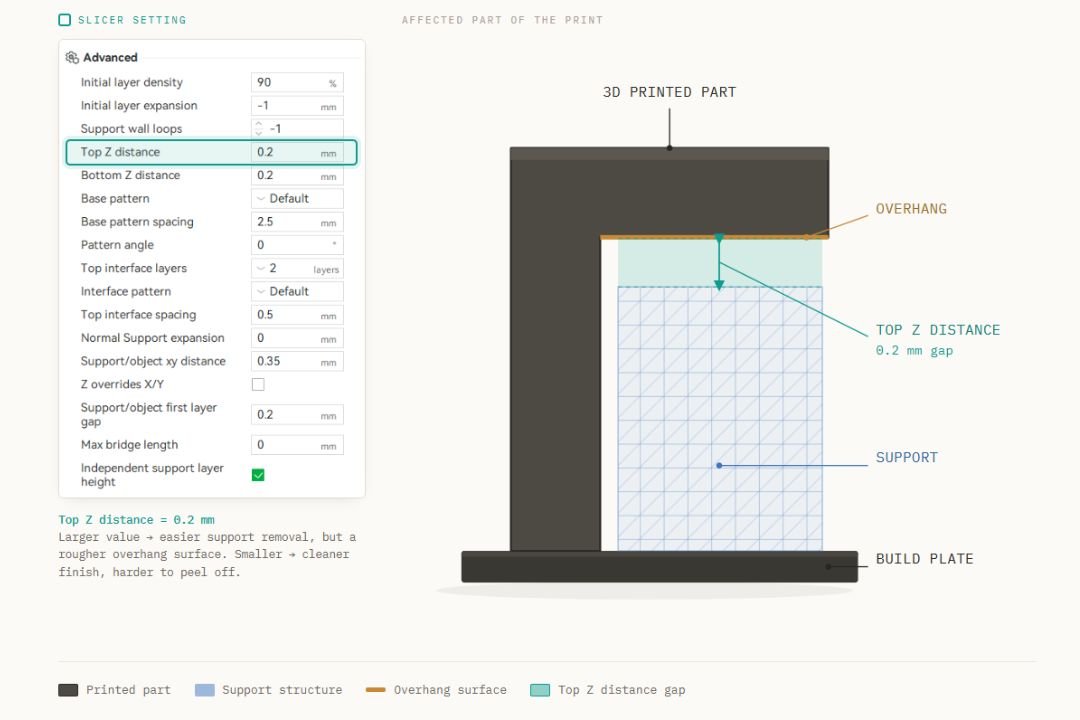
This gap controls how tightly the support holds the overhanging material.
If the gap is too large, the filament droops before it reaches the support surface and the interface comes out rough and messy. If the gap is too small, the support bonds to the part and becomes very difficult to remove. The goal is to find a value in the middle where the interface prints cleanly and still detaches without too much force.
The default value in most slicers is 0.2mm.
Testing Three Values
I tested three Z distance values on the same part to show the difference.
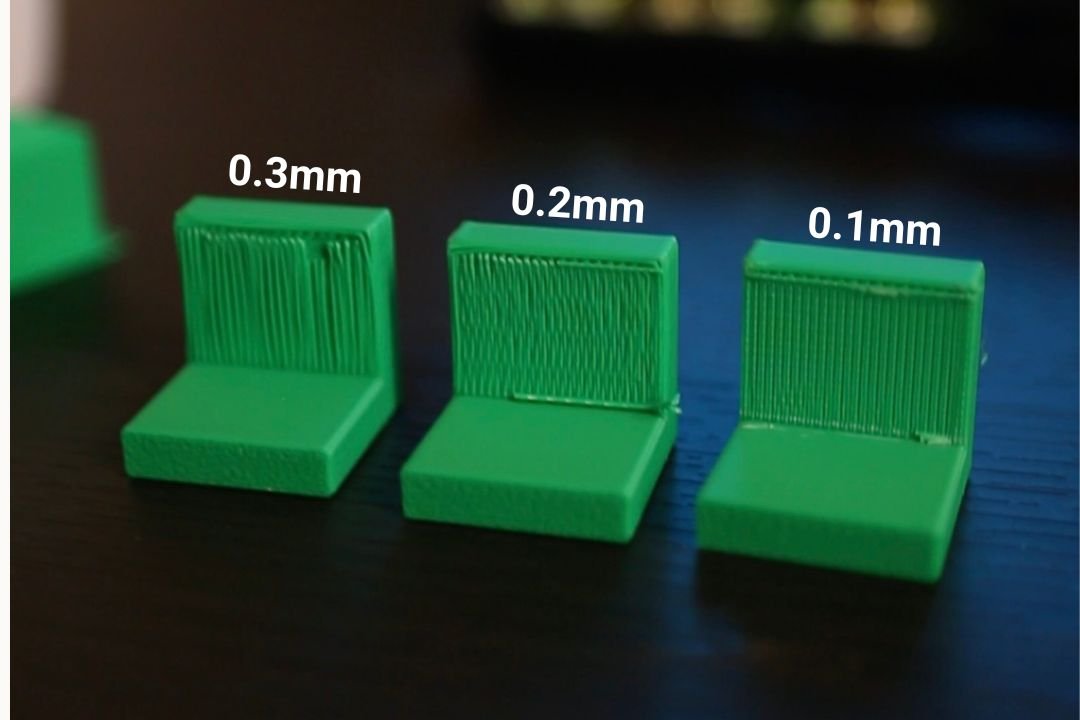
0.3mm
Support came off with almost no effort. But the interface surface was rough and uneven. At this gap, the filament has too far to travel before it gets support, so it sags.
0.2mm
Slightly harder to remove but still came off by hand. The interface surface was noticeably cleaner. This is the default for a reason and a good starting point for most prints.
0.1mm
The interface surface was very clean and flat. But the support had partially fused to the part and I had to use a scraper to get it off. At this value there is a real risk of damaging the surface if you are not careful.
Which Value Should You Use?
| Z Distance | Removal | Interface Quality |
|---|---|---|
| 0.3mm | Very easy | Poor |
| 0.2mm | Easy | Good |
| 0.1mm | Difficult | Excellent |
Start at 0.2mm. If your interface still looks rough, try 0.15mm. Only go lower if your material and part geometry allow for easy support removal.
The Better Method: Use a Different Interface Material
Even at 0.1mm, you are still choosing between interface quality and removal difficulty. There is a way to get a clean surface without making that compromise.
Use a different filament for the support interface layer only.
PLA and PETG do not bond well to each other. If you print your model in PLA and switch to PETG just for the interface layer, the support peels off cleanly even with zero Z distance. No gap needed because the materials naturally release from each other.
In your slicer, go to the Support section and enable the interface material option. Select PETG as the interface material. The slicer will automatically set top Z distance to zero.
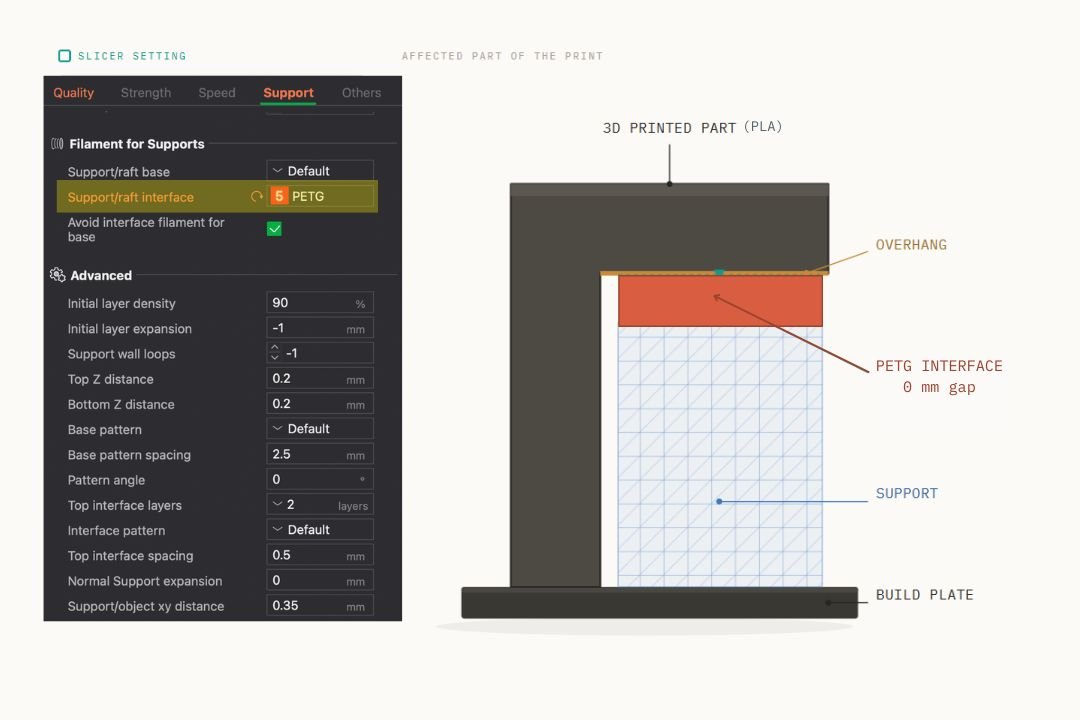
Result
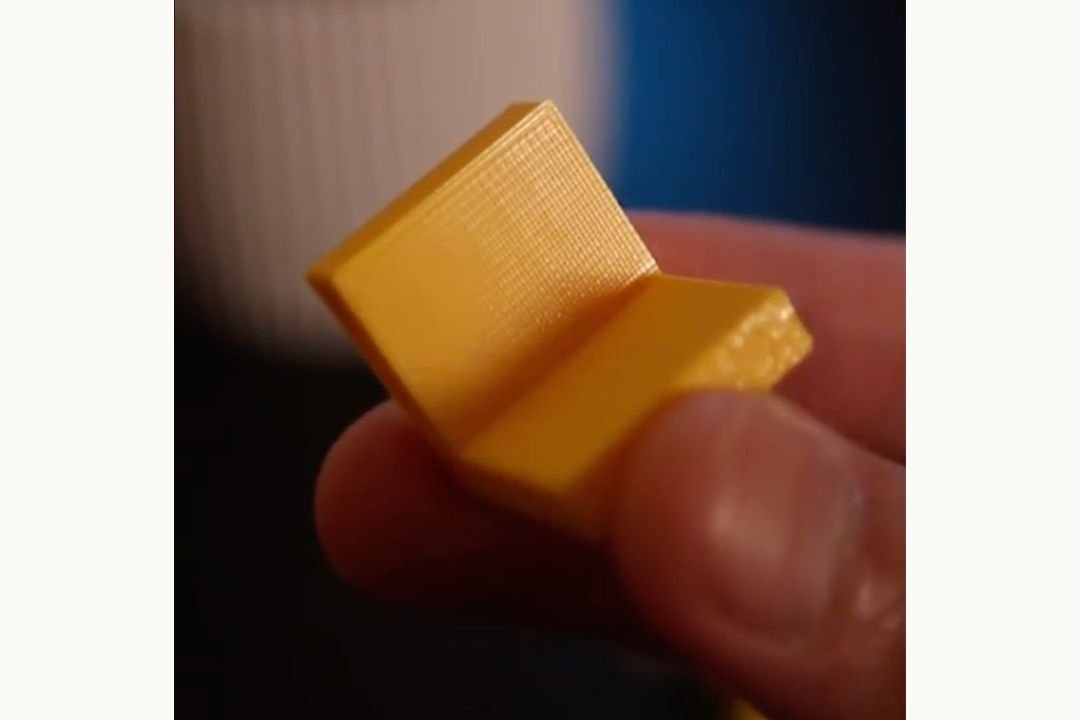
The support peeled off with almost no resistance. The underside surface was the cleanest of all methods tested, cleaner than even the 0.1mm single-material result.
If your printer supports multiple filaments or you are willing to do a manual filament swap mid-print, this method is worth trying for any print where the interface surface quality matters.
Quick Reference
- Default top Z distance is 0.2mm and a good starting point
- Lower values give cleaner surfaces but make removal harder
- 0.1mm gives excellent quality but may require a scraper
- Using PETG as the interface material on PLA prints removes the tradeoff entirely: zero Z distance, easy removal, clean surface
Looking to buy a 3D printer in Malaysia?
We’ve put together a curated list of 3D printing shops, filament suppliers, and service providers across Malaysia.
View the directory →You may also like

Jangan terlepas artikel dan panduan terbaru
Get new Domechy articles, guides and free models straight to your inbox.

Wanna share your thoughts or request anything? Comment below.